Running Python Scripts on a Mobile
Phone on a Schedule
Translated by DeepSeek V4 Pro. Translations can be inaccurate, please refer to the original post for important stuff.
Jianlin SuOctober 21, 2015#3477
Undoubtedly, data is the foundation of
data analysis. For ordinary users like us, the natural way to obtain
large amounts of data is through crawler collection. For me, the most
natural way to write a crawler is using Python. With just a few lines of
code, a practical crawler can be completed—how clean and efficient.
(Please refer to: "Recording
the process of crawling Taobao/Tmall comment data")
Where Should the Crawler Live?
The next question is: where should this crawler run? To crawl data
that is updated daily, it is often necessary to run the crawler once a
day, specifically at a certain scheduled time. In this case, it is not
practical to keep it running on your own computer all the time, as there
are always times when the computer is powered off. Some readers might
think of putting it on a cloud server; that is a method, but it involves
extra costs. Inspired by the great Xiaoxia, I began to think about running
it inside a router. Some high-end routers allow for external USB drives
and can be flashed with the OpenWrt system (a Linux-kernel router system
where you can install Python just like on a regular Linux system). This
was a very attractive approach for me, but I am not familiar with
compiling in a Linux environment, especially within a router
environment. Furthermore, router specifications are generally very low,
typically with only 16MB of Flash and 64MB of RAM. Without patience, it
is hard to bear.
I also considered buying a Raspberry Pi for this task. The current
Raspberry Pi 2B already has 1GB of RAM, making it a fully functional
micro-PC, and the price is not expensive; it is indeed worth playing
with. However, setting aside the extra expenditure, if I bought a
Raspberry Pi just to host a crawler, it would seem like a bit of a
waste. After considering various ideas, an idea suddenly popped up
yesterday—besides laptops, the smart devices we use most often are
mobile phones. Why not put it on a phone? After all, our phones are
basically connected to WiFi all day long, and they are mostly idle while
we sleep at night. Running the collection on a phone seems perfectly
suitable!
A Difficult Exploration
Once I had the idea, I started immediately. Of course, the entire
exploration process was quite painful.
First is the Python environment on the phone. This is simple because
there is QPython available, which is a feature-rich Python environment
for Android that is ready to use upon installation. It is not much
different from Python on a PC, except that you cannot install many
third-party libraries. Since the crawler needs to collect Chinese
information, I chose QPython3. It is said that SL4A and PY4A are also
available, but they haven’t been updated for a long time and their
configuration is more complex, so I didn’t bother trying them.
Next is writing the crawler. When writing the crawler, pay attention
to using the built-in libraries in QPython3. I used to use the
requests library, which is compatible with both 2.x and
3.x. However, QPython3 does not come with this library. Online tutorials
usually teach us to use the urllib2 library; in fact, this
library only exists in 2.x, and in 3.x, it has been integrated into
urllib, so you must change urllib2 to
urllib.request. More importantly, QPython3 includes the
regular expression library re, which is essential for
writing crawlers! Also, QPython3 includes the csv library,
which is convenient for saving results. I won’t provide the specific
crawler code; readers can explore it themselves.
Now, we come to the hardest step: how to make the crawler run on a
schedule on the phone?
Yesterday and today, I searched through a lot of information and
tried many methods, failing numerous times. Finally, I figured out a
feasible method.
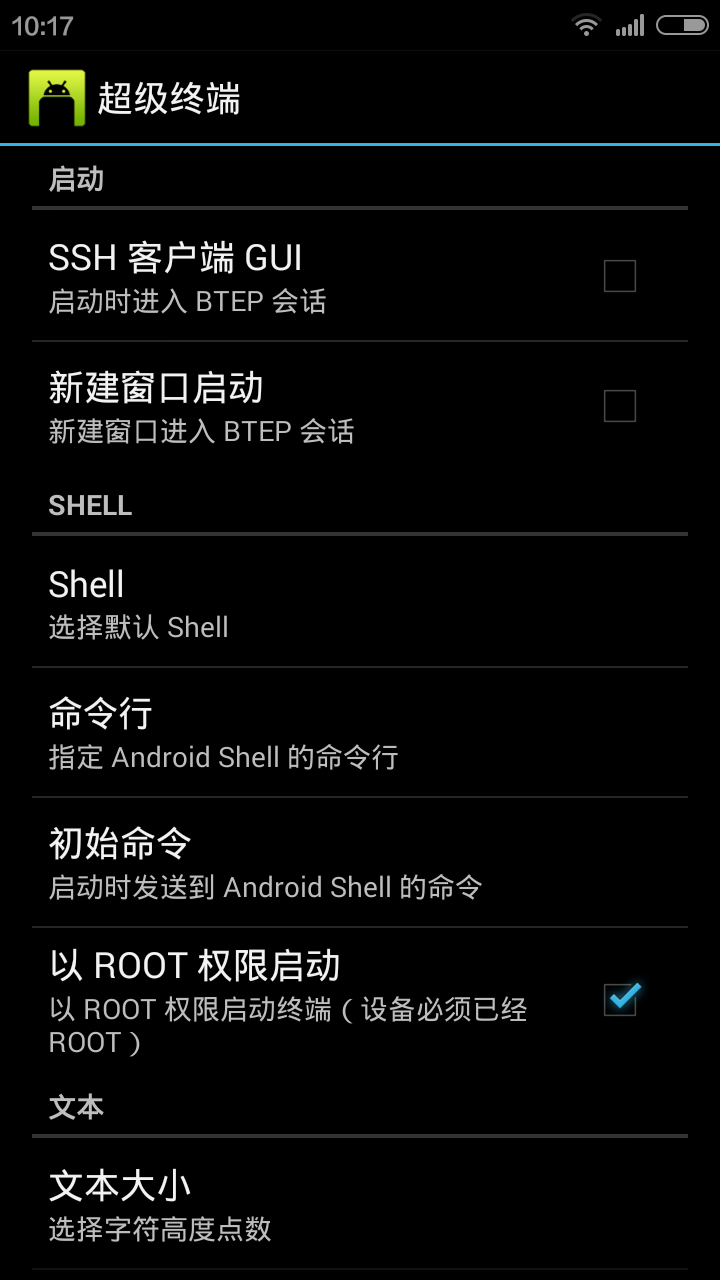
Step 1: Execution. Install "Terminal Emulator" (I
don’t know if there are other similar apps that can achieve this). This
is an Android terminal emulator that gives our Android device a terminal
like the one in Linux. Most importantly, in its "Settings," you can
choose to start as root and customize the terminal startup command line.
In the terminal startup command line option, enter: /data/data/com.hipipal.qpy3/files/bin/qpython.sh/sdcard/com.hipipal.qpyplus/scripts3/582.py
The red part is the crawler script we wrote. After filling it in, close
the Terminal Emulator and reopen it. If you find that the specified
crawler script runs automatically when the terminal opens, then you have
succeeded.
Terminal Emulator Settings
Step 2: Scheduling. You can install an app like
"Task Master." There are many such apps; just pick any one, as long as
it supports running a specified app on a schedule. Create a scheduled
task in the app and select the Terminal Emulator to run on a
schedule.
Summary
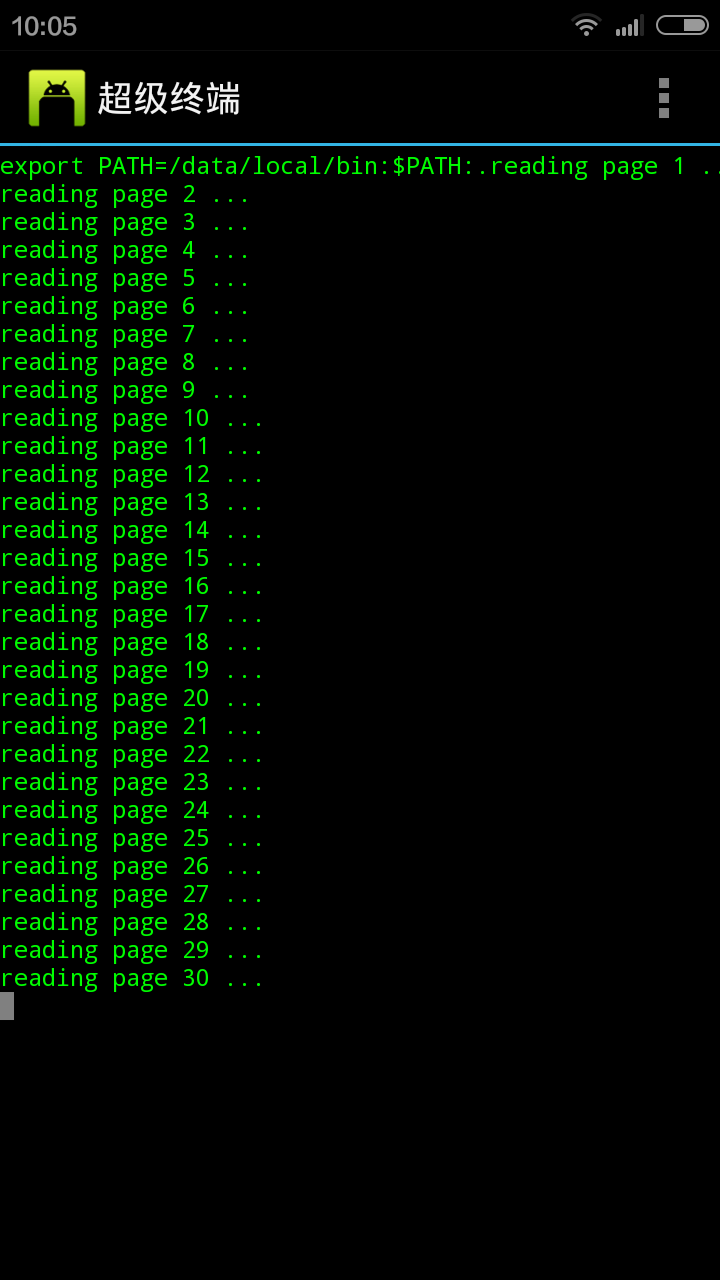
Here is a screenshot of it running:
Mobile Crawler Interface
At this point, we have completed the writing and scheduled automatic
execution of a Python crawler on Android. In summary, we use QPython to
run the Python script and then use an app like Task Master to run the
app on a schedule. How do we get QPython to execute our script
specifically? By specifying the startup command through the Terminal
Emulator—this way, the Terminal Emulator becomes an app dedicated to
running this crawler (of course, this seems a bit like overkill for the
Terminal Emulator, but I couldn’t think of a better way).