Recently, I acquired a very mini router—an ultra-small router built from a 25 x 25mm VoCore development board. With its casing, it measures only 37.4 x 34 x 25.9mm, which is just slightly larger than a portable USB WiFi adapter.
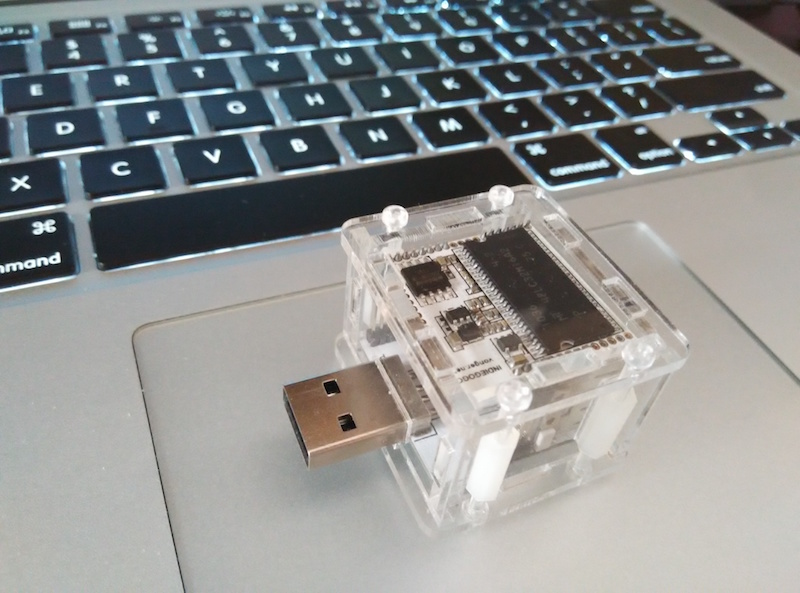
Despite its small size, the specifications are quite impressive:
CPU Processor: Ralink RT5350 360MHz MIPS 24KEc
Memory: 32MB 133MHz SDRAM
Flash: 16MB
Expansion Interfaces: SPI, I2C, I2S
WiFi Wireless: 802.11n
Ethernet Network: 10/100MHz x 2
GPIO Expansion: 28 (Reused)
UART Interface: UART Lite / UART Full
USB Interface: USB 2.0, up to 480M
Power Supply: 3.3V ~ 6V
Simply put, it allows us to install OpenWrt, which opens up a lot of possibilities. Because it is so small and easy to carry, it makes for a perfect portable router. So, I got to work.
As everyone knows, smartphones or laptops have a feature where if we have connected to several WiFi networks in different places, the device remembers that information. If we return to those locations, it automatically connects to the corresponding WiFi without manual intervention (except for those requiring portal authentication). Can OpenWrt achieve this? In other words, can OpenWrt automatically scan for WiFi, connect to it, and then broadcast its own hotspot for a phone or laptop to use?
Some might wonder: if the router can scan the WiFi, surely the phone or laptop can too, so why not just connect the phone directly? For normal WiFi, that is true. However, for networks like our campus WiFi or CMCC WiFi, authentication is required, and often only one device is allowed per account. A common solution is to use a computer to connect to the WiFi and then use something like a portable WiFi dongle to share it. While simple, it is too ordinary, and I don’t always carry a computer with me. Therefore, that method was not for me.
Enough talk, let’s get to work. My mini router is flashed with OpenWrt 15.05. First, here is the complete process for relaying a standard WiFi network (a standard WiFi being one that works normally after entering a password). SSH into the router and enter:
# Enable WiFi
uci set wireless.@wifi-device[0].disabled=0
uci commit wireless

# Create relay interface
uci set network.wwan=interface
uci set network.wwan.proto=dhcp
uci commit network

# Create Hotspot WiFi
uci set wireless.@wifi-iface[0].device=radio0
uci set wireless.@wifi-iface[0].network=lan
uci set wireless.@wifi-iface[0].ssid=VoCore
uci set wireless.@wifi-iface[0].mode=ap
uci set wireless.@wifi-iface[0].encryption=none
uci commit wireless

# Relay Hotspot "BoJone"
uci add /etc/config/wireless wifi-iface
uci set wireless.@wifi-iface[1].device=radio0
uci set wireless.@wifi-iface[1].network=wwan
uci set wireless.@wifi-iface[1].ssid=BoJone
uci set wireless.@wifi-iface[1].mode=sta
uci set wireless.@wifi-iface[1].encryption=psk2
uci set wireless.@wifi-iface[1].key=12345678
uci commit wireless

# Set Firewall
uci set firewall.@zone[1].forward=ACCEPT
uci set firewall.@zone[1].network='lan wan wwan'
uci commit firewall

# Restart Network
/etc/init.d/network restart
These steps are configured during the first run. Once configured, if you want to change the relayed WiFi, you only need to modify the relay section; everything else remains the same. Next, we achieve our goal step by step. First is scanning the WiFi list. In OpenWrt, we use:
iw wlan0 scanThis provides a very detailed list of nearby connectable WiFi networks, including SSID and signal strength. For relay stability, we also need to judge the signal strength. The basic tool for this process is regex.
Next, we need to implement automatic authentication. Here, I am only
automating the authentication for the SCNU (South China Normal
University) campus WiFi. Analyzing the process, I found it simply POSTs
the username and password. But what tool should I use to POST?
Naturally, I thought of Python’s requests, but installing
Python and requests is a bit cumbersome. Later, I
discovered that wget also supports POSTing data (amazing!).
I could just use wget. However, the built-in
wget does not support HTTPS, so you need to install the
full version:
opkg update
opkg install wget
With this, we can write a shell script:
#!/bin/ash
POST_SCNUNET()
{
while true
do
web=`wget http://kexue.fm -q -O-`
net_test=`echo $web|grep Scientific`
if [ ${#net_test} -lt 2 ] ;
then
url=`echo $web|awk -F "href=\'" '{print $2}'|awk -F "\'" '{print $1}'`
url=${url/index.jsp?/userV2.do?method=login¶m=ture&}
wget $url --post-data 'username=XXXXXX&pwd=XXXXXX' --no-check-certificate -q -O-
sleep 5
else
break
fi
done
}
uci delete wireless.@wifi-iface[1]
wifis=`iw wlan0 scan`
dbm=`echo $wifis|awk -F 'BoJone' '{print $1}'|awk -F '-' '{print $NF}'|awk -F '.' '{print $1}'`
if [ $dbm -lt 100 ] ;
then
uci add /etc/config/wireless wifi-iface
uci set wireless.@wifi-iface[1].device=radio0
uci set wireless.@wifi-iface[1].network=wwan
uci set wireless.@wifi-iface[1].ssid=BoJone
uci set wireless.@wifi-iface[1].mode=sta
uci set wireless.@wifi-iface[1].encryption=psk2
uci set wireless.@wifi-iface[1].key=12345678
uci commit wireless
/etc/init.d/network restart
echo 'Connected BoJone' > log.txt
else
dbm=`echo $wifis|awk -F 'SCNUNET' '{print $1}'|awk -F '-' '{print $NF}'|awk -F '.' '{print $1}'`
if [ $dbm -lt 100 ] ;
then
uci add /etc/config/wireless wifi-iface
uci set wireless.@wifi-iface[1].device=radio0
uci set wireless.@wifi-iface[1].network=wwan
uci set wireless.@wifi-iface[1].ssid=SCNUNET
uci set wireless.@wifi-iface[1].mode=sta
uci set wireless.@wifi-iface[1].encryption=none
uci commit wireless
/etc/init.d/network restart
POST_SCNUNET
echo 'Connected SCNUNET' > log.txt
else
uci commit wireless
/etc/init.d/network restart
echo 'No Wifi Connected' > log.txt
fi
fiThe logic of this script is: Scan
the WiFi list to see if "BoJone" is present and check its signal
strength. If it is good enough, connect to it automatically. If not,
check if "SCNUNET" is present and check its signal strength. If it is
good enough, connect to it and complete the authentication. The
authentication process is pre-analyzed and written in the
POST_SCNUNET function (this function first uses
wget to download this website to check if the network is
normal; if it is, no authentication is needed; if not, it will
automatically redirect to the authentication page). If neither is
available, it stops relaying and waits for a wired
connection.
Other campus networks or authenticated WiFi are likely similar; this is provided as a reference example.
Finally, I feel that for implementing simple functions, pure shell scripts are quite refreshing, especially in low-end environments like routers. If you can use shell, use shell. With a foundation in Python programming, implementing this was not very difficult.
Original Address: https://kexue.fm/archives/3644
For more details on reposting, please refer to: Scientific Space FAQ